“Hey Siri, ask SSH Flow” … “Check disk space”

Your servers, in your pocket and in Siri.

Save the commands you run every day, then run them by voice, from your iPhone or from your Apple Watch. SSH Flow connects, runs the command and tells you how it went in plain English. Anything destructive always shows you the exact command and needs Face ID first.

Coming soon to the App Store See what it does
iPhone · iOS 18 or newer · Apple Watch companion · No ads, no accounts, no data collected
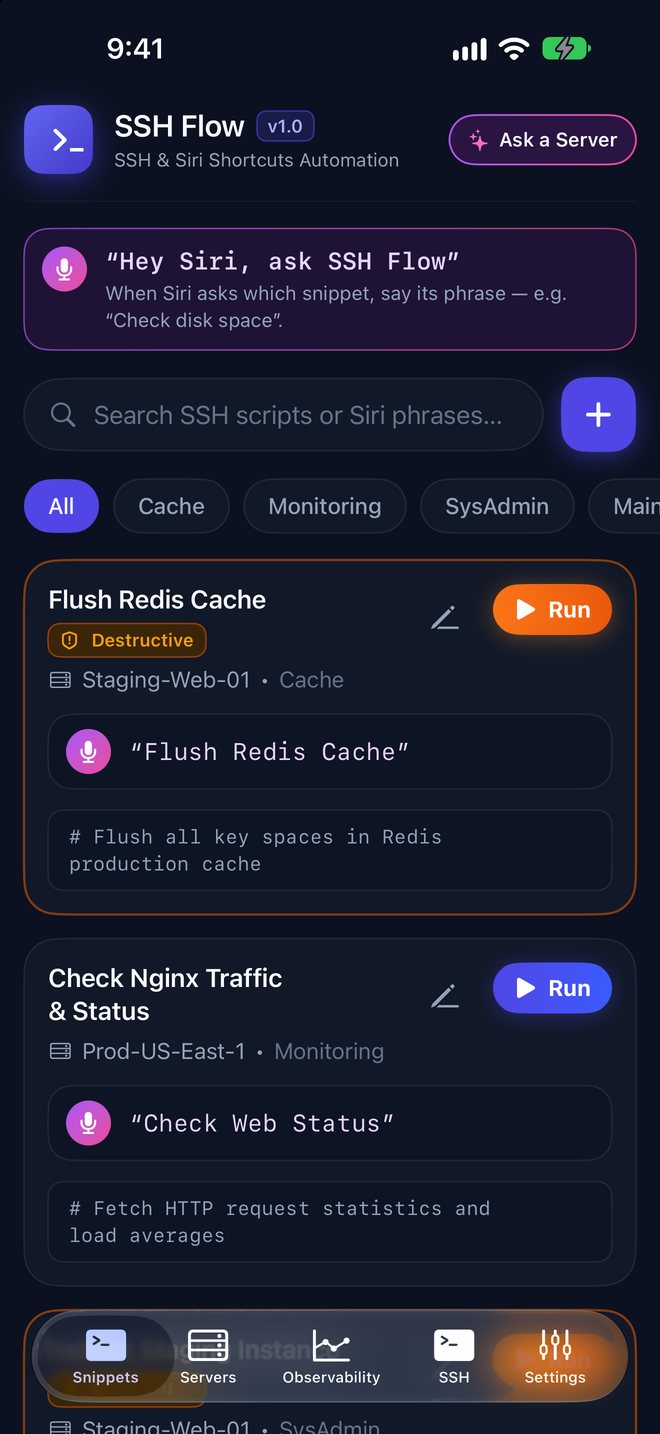
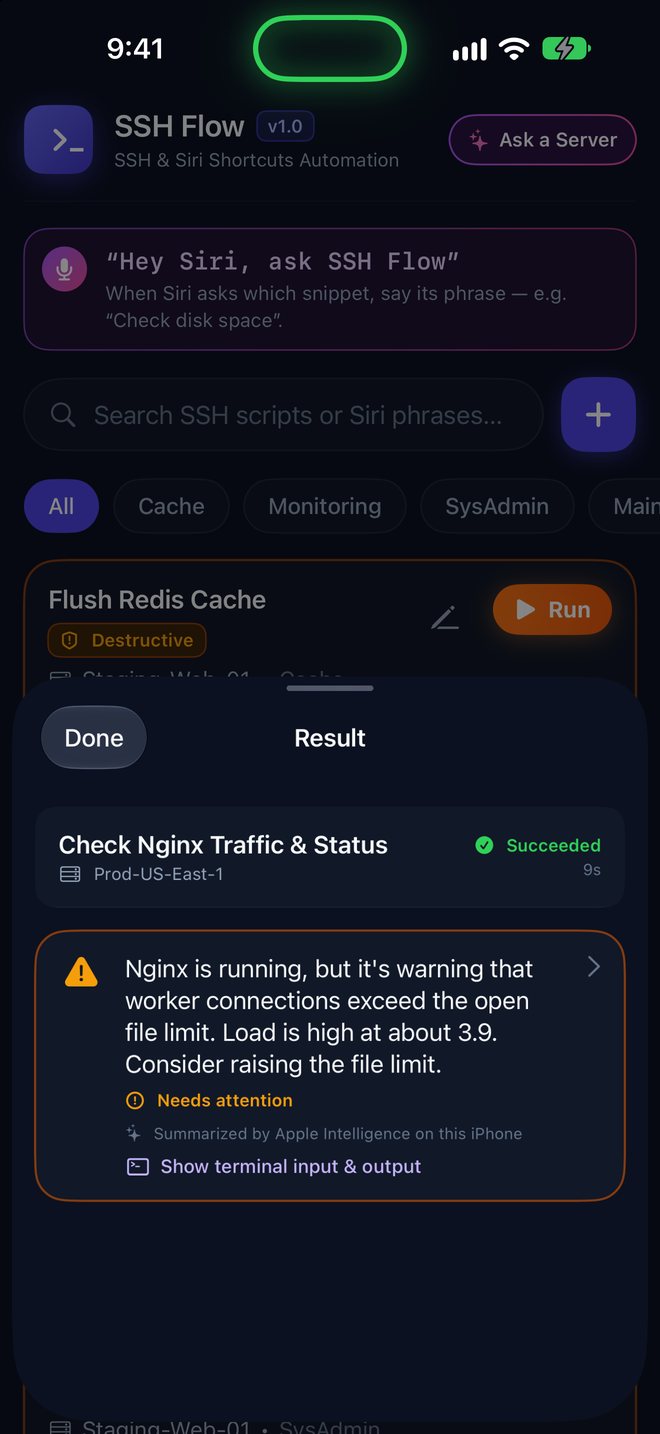
The SSH Flow Snippets screen: a banner reading “Hey Siri, ask SSH Flow”, then cards for Flush Redis Cache (marked Destructive) and Check Nginx Traffic & Status, each with the phrase to say and a Run button.
Safe by design

Fast for routine work. Careful with the dangerous stuff.

Face ID for destructive commands

rm -rf, reboot, systemctl stop, DROP… always show the exact command for review and need Face ID, every time, even from Siri. Nothing destructive runs silently in the background.

Keys stay on your iPhone

SSH keys live in the Secure Enclave or the Keychain, protected by Face ID. Passwords and sudo secrets are stored the same way and are only ever sent to the server you chose.

Verified host keys

The first time you connect you confirm the server's fingerprint; after that it's pinned, so you know you're always talking to the right machine.

A finished run of Check Nginx Traffic & Status: a green Succeeded badge, a plain-English summary, and the command output below.
Run with Siri

Say it, and it's done

Every snippet gets a phrase. Say “Hey Siri, ask SSH Flow”, and when Siri asks which snippet, say its phrase: “Check disk space”, “Restart the web server”, “Any failed services”. You can also run snippets from Spotlight, the Shortcuts app or your Apple Watch.

  • Live Activities and the Dynamic Island show each run as it happens, with a green or red result
  • On-device Apple Intelligence sums up the output: “Nginx is running, but worker connections exceed the file limit.”
  • The full terminal output is one tap away

Want to say just “Hey Siri, Check disk space”? Add the snippet as a personal shortcut in the Shortcuts app; the app walks you through it.

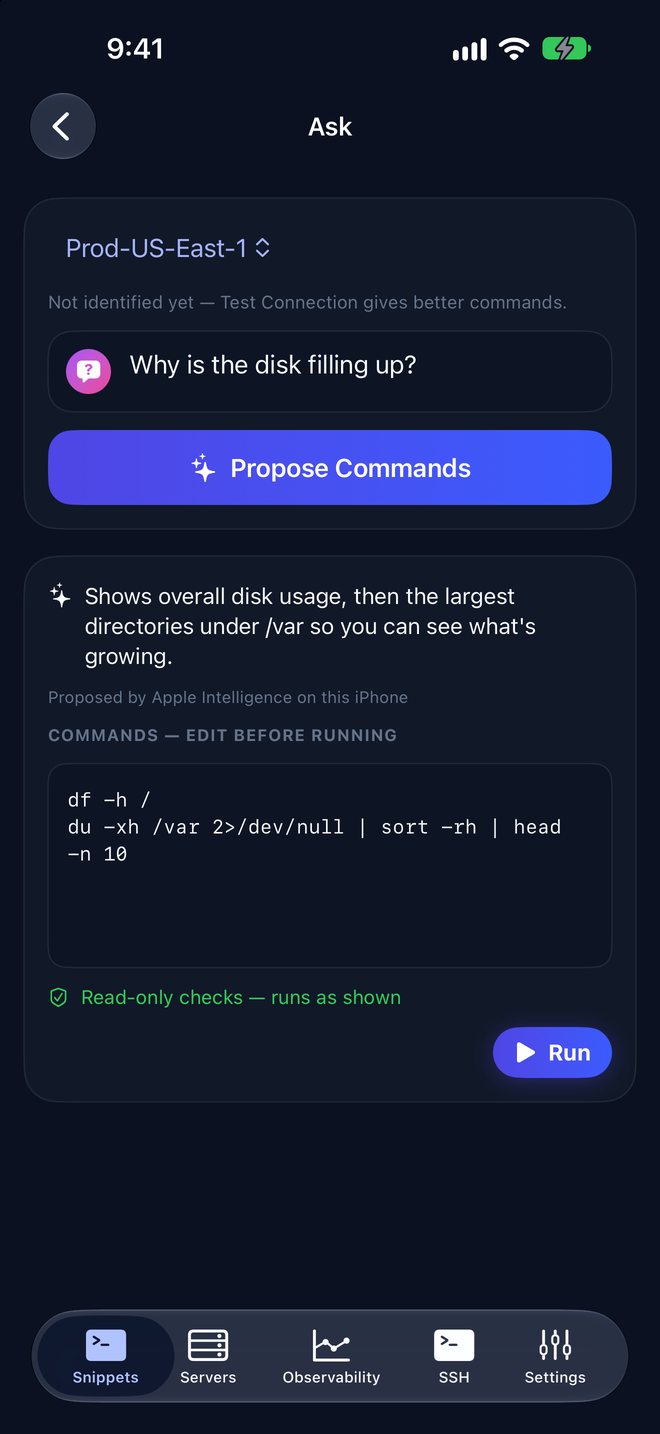
The Ask screen: the question “Why is the disk filling up?”, an explanation of the proposed commands, the commands df -h / and du -xh /var, and a Run button.
Ask a server

Ask a question, get the commands

“Why is the disk filling up?” SSH Flow proposes the commands to find out, you check or edit them, it runs them and explains what it found.

Use Apple Intelligence on your iPhone, or your own Anthropic, OpenAI or Ollama account. Commands are always shown before they run, and the same safety checks apply.

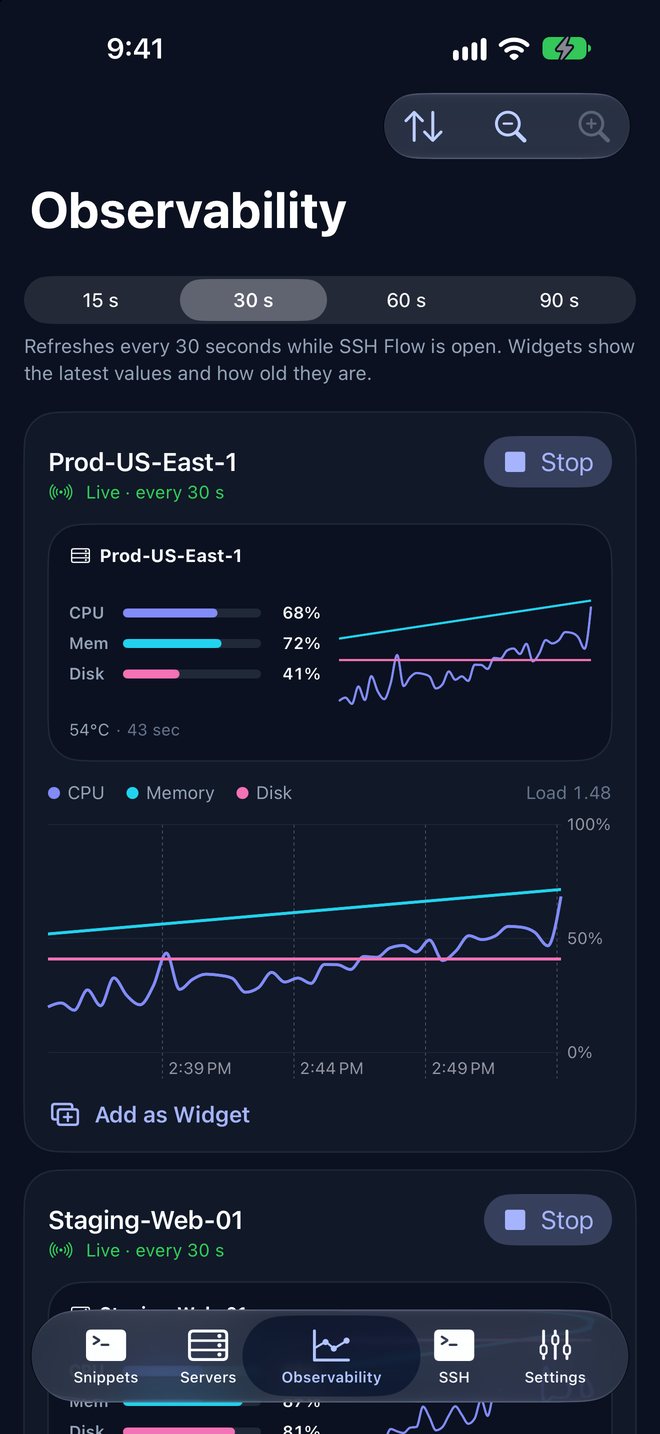
The Observability tab: tiles for several servers, each with live CPU, memory and disk charts.
Live observability

Every server at a glance

Watch CPU, memory and disk over time for each of your servers, sampled every 15, 30, 60 or 90 seconds. Arrange the tiles, make them smaller, and turn your iPhone sideways for more room.

Add Server Vitals widgets to your Home Screen; tap one to open that server.

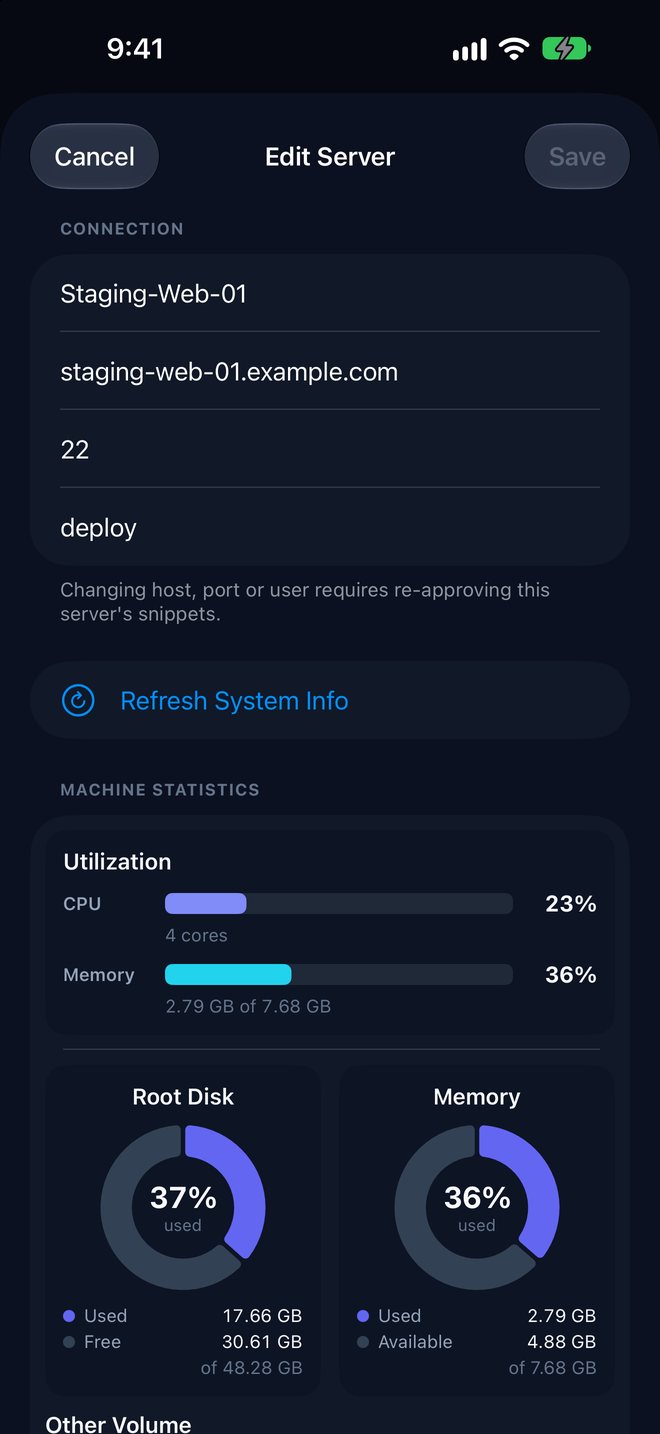
A server's details: operating system, CPU and memory bar charts, a disk pie chart and other volumes.
Know every machine

The whole machine, one screen

Operating system and kernel, CPU and memory use, disks and other volumes, GPUs, and on a Raspberry Pi its temperature and any throttling.

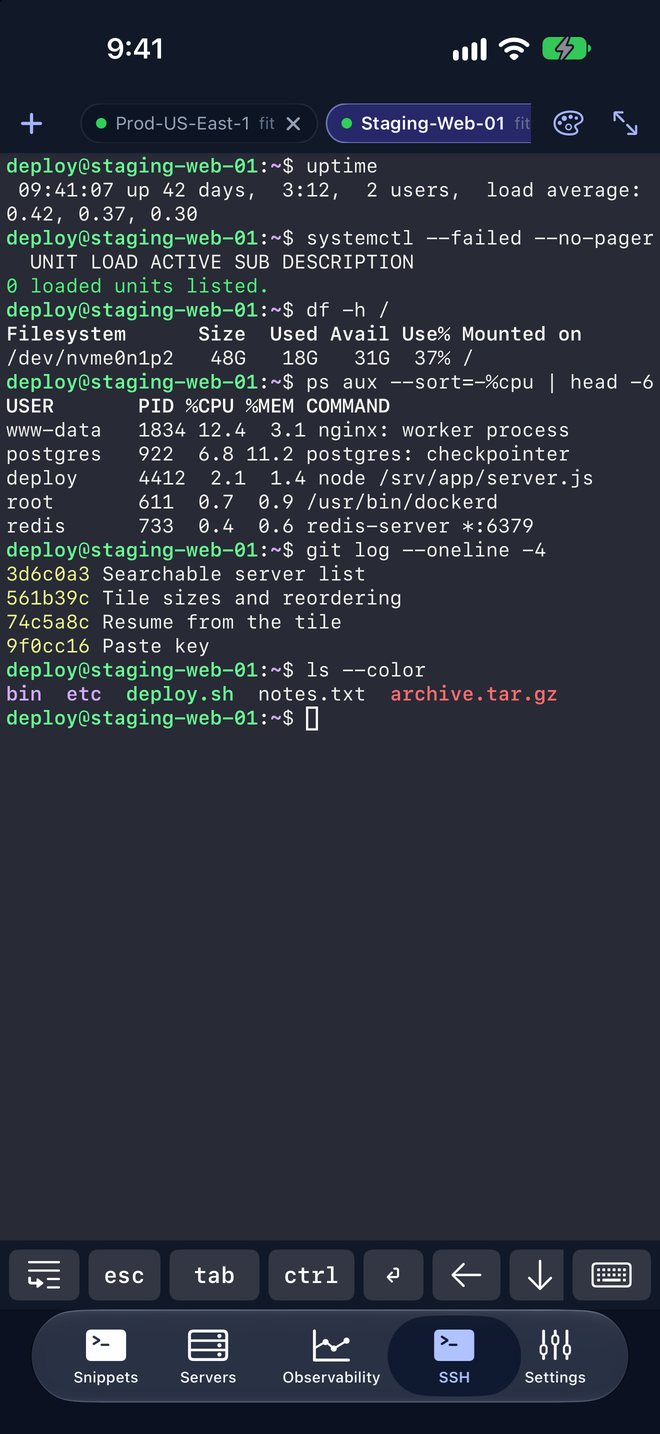
The SSH tab: a full-colour terminal session with a key bar for esc, tab, ctrl and the arrow keys.
A real terminal

When you need a shell, it's right there

  • Full-colour terminal with tabs, in portrait or landscape
  • A key bar with esc, tab, ctrl, arrows, symbols and paste
  • Your own saved commands, typed in with one tap
  • Tap a word (a path, a host, an IP) to copy it
  • Fixed 80×24 for tools like raspi-config, or fit to the screen
  • Nine colour schemes
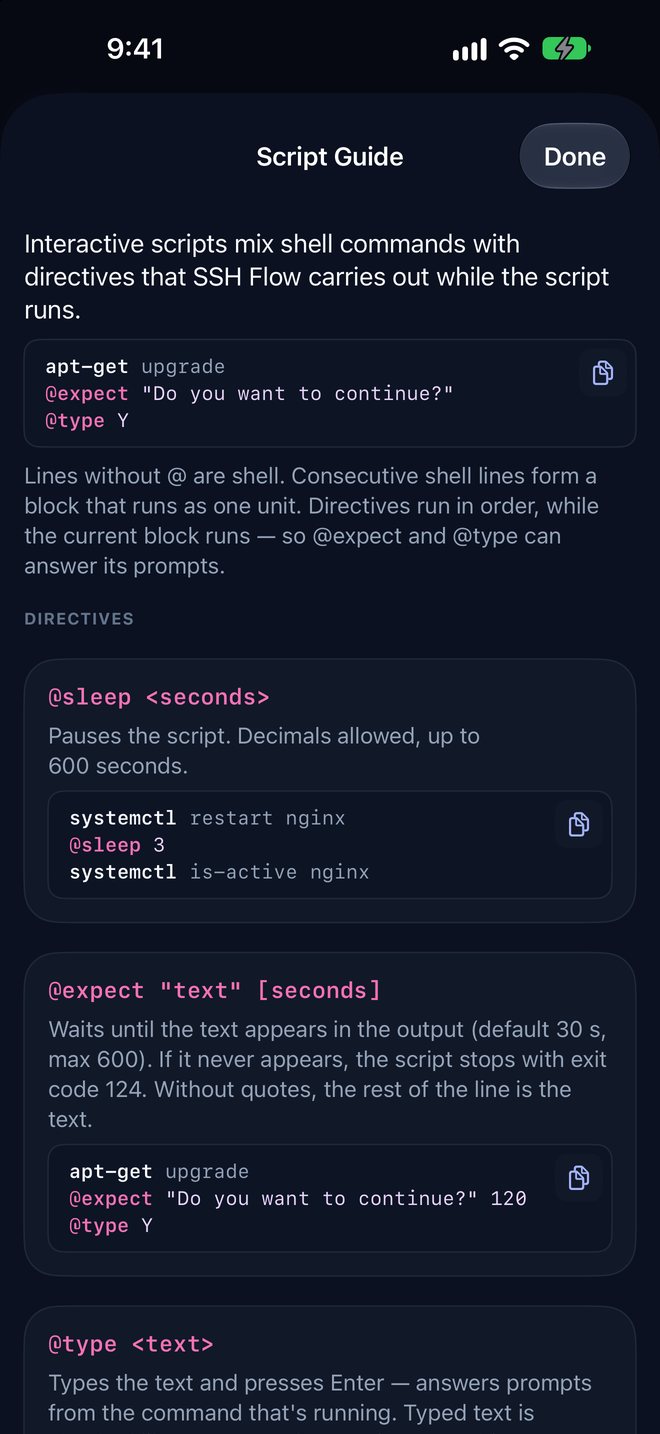
The Script Guide: examples of @expect, @type, @sleep and @secret directives with copy buttons.
Scripts

Scripts that answer the prompts

Answer prompts automatically, pause when you need to, and supply a sudo password from the Keychain without it ever appearing in the script.

@note Upgrading packages
sudo apt-get update
@secret staging-sudo
sudo apt-get upgrade
@expect "Do you want to continue?" 120
@type Y

Start from ready-made templates for Debian and Ubuntu, Fedora and RHEL, Arch and Alpine, filtered to the system each server runs.

Support

Getting started

  1. Add a server. Servers tab → +. Enter the host, port and user, and choose a key (made on your iPhone) or a password. Confirm the host key the first time you connect.
  2. Add a snippet. Snippets tab → + → start from a template or write your own, and give it a phrase.
  3. Run it. Tap Run, or say “Hey Siri, ask SSH Flow” and then the phrase.

Questions

Siri says it can't find my snippet

Say “Hey Siri, ask SSH Flow” first, wait for “Which snippet?”, then say the phrase shown on the snippet's card. Apple requires the app's name in Siri phrases; to skip it, make a personal shortcut for the snippet in the Shortcuts app.

Why does Siri open the app for some commands?

Commands that change or delete things, and any snippet you haven't run before, open SSH Flow so you can see the exact command and approve it with Face ID. Read-only snippets you've already approved can run in the background.

How do I use a key with my server?

Make a key in the server's settings, copy its public key, and add it to ~/.ssh/authorized_keys on the server. The private key never leaves your iPhone.

Does SSH Flow collect my data?

No. There are no accounts, analytics or ads, and nothing is sent to us. See the privacy policy.

Still stuck, or have an idea? Email support@logocode.dev.